
Own Your Digital Images and Prints
How to Place an Order Online
Below are instructions on selecting your fundraising print and ordering Packages, Prints and Digital Images.
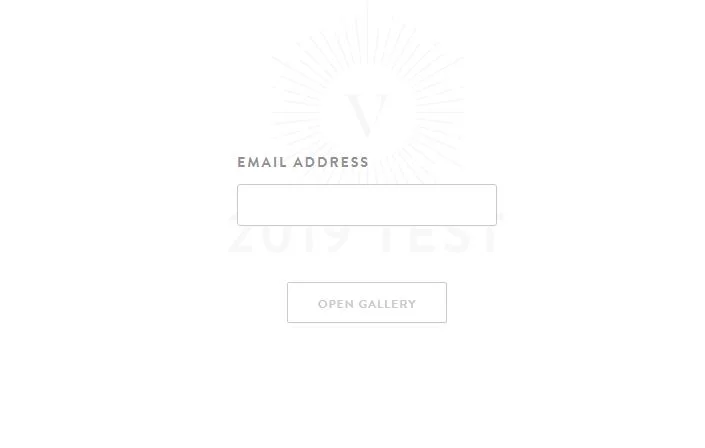
Step 1: Viewing your images
Click on the gallery link in the email sent to you and then click on Open Gallery. Enter your email address to access your centre’s gallery.
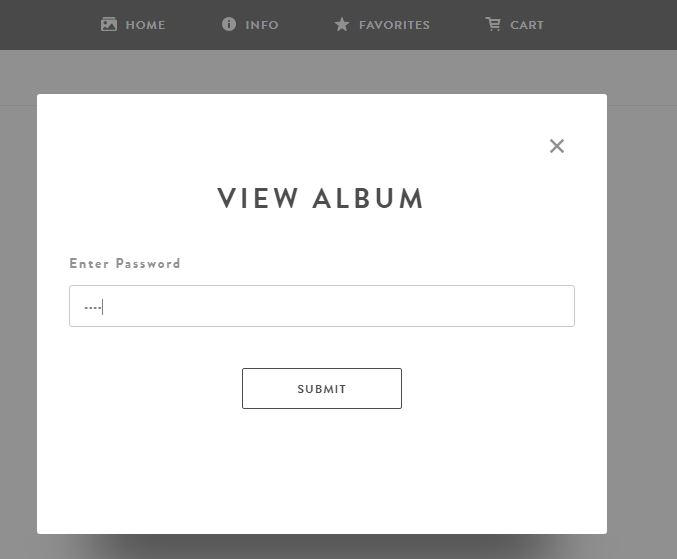
Step 2: Viewing your images
Select the name of your child and then enter the password you registered with.
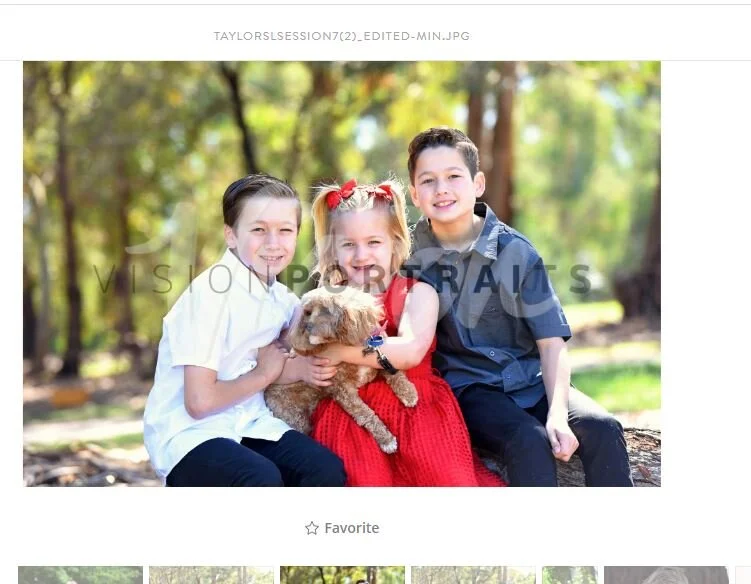
Step 1: Select your free 10” x 13” print
Once you have entered your album, have a look through the images and select the image you would like as your fundraising print. To do this click on your preferred image so it opens up an enlarged preview.
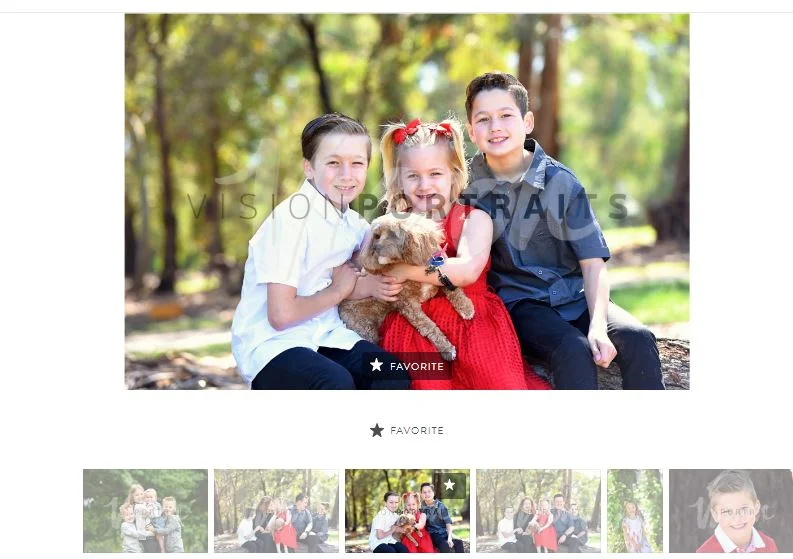
Step 2: Selecting your free 10” x 13” print
Click on the Favorite (star) button under the image so that ‘Favorite’ appears on the image as shown. Please note down the image name/number you have selected so we can later confirm this with you via sms or email. This appears at the top of the image.
You can then select Back to Gallery in the top right and proceed to get packages as well as individual prints and digital images.
See instructions below.
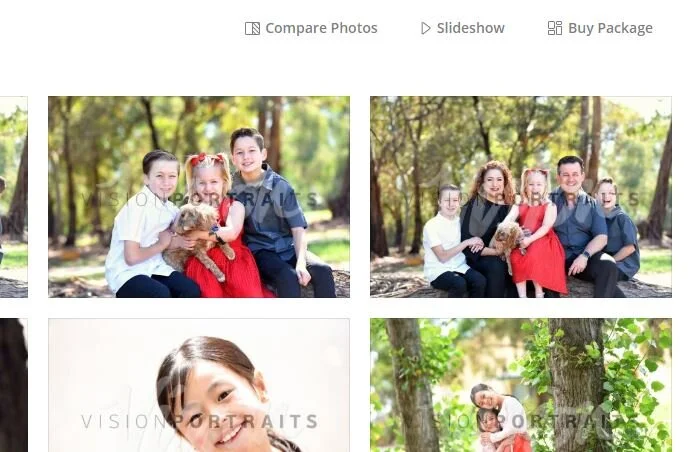
Step 1: Getting a Package
Once you enter your online album. Click on ‘Buy Package’ in the top right.
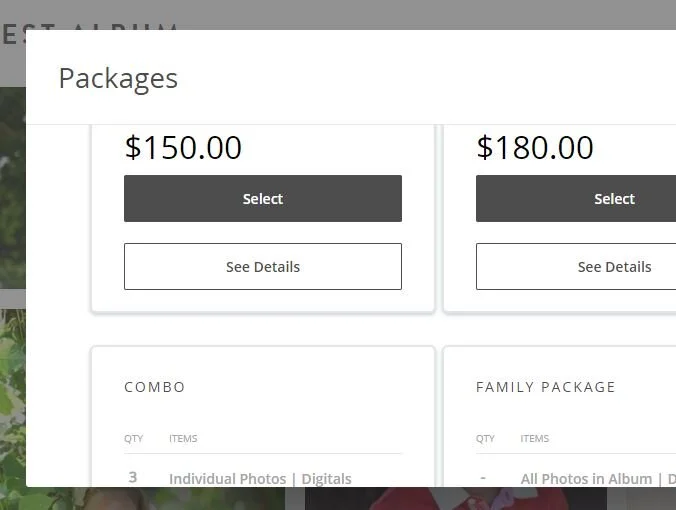
Step 2: Getting a Package
The Packages menu will appear. Click on the dark grey ‘Select’ button to pick the package you’d like.

Step 3: Getting a Package
Depending on your package selection, you will be prompted to add your selection for your images and prints. To do this you will need to click the + button and then click on your the photo you’d like within the album.
If the package you have selected contains all digital photos, you will need to click the + button once next to Choose Album and it will automatically select your album.
Do this until you have filled all the ‘+’s.
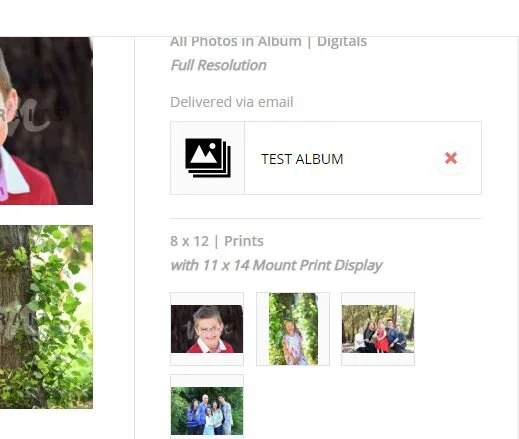
Step 4: Getting a Package
Click Add to Cart, followed by ‘View Cart’ and then ‘Checkout’.
Digital images are delivered via a download link sent to your email and are usually sent the same day you placed your order.
Prints are sent to your centre within 4 weeks of placing your order.
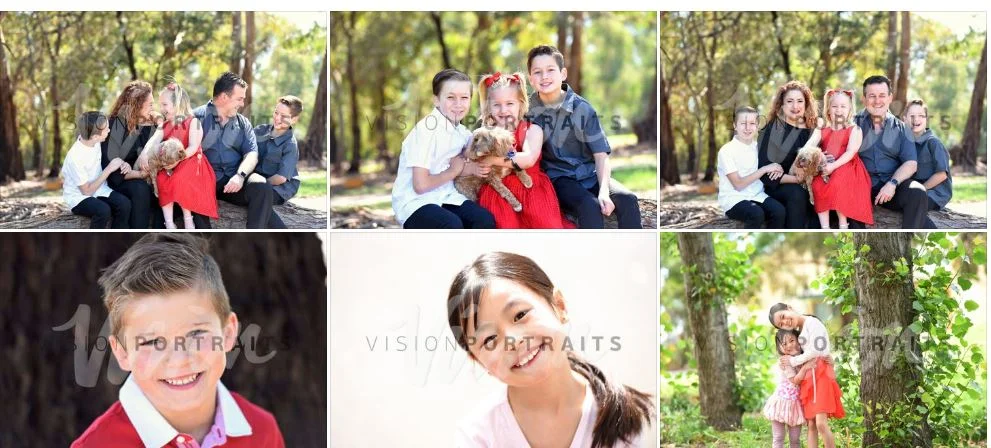
Step 1: All Digital Images
You have the option to get packages that include all digital images plus prints. If you would like to get all digital images without any additional prints on top of the fundraising print, then follow the following steps.
Click on ANY image in your album to open up a preview.
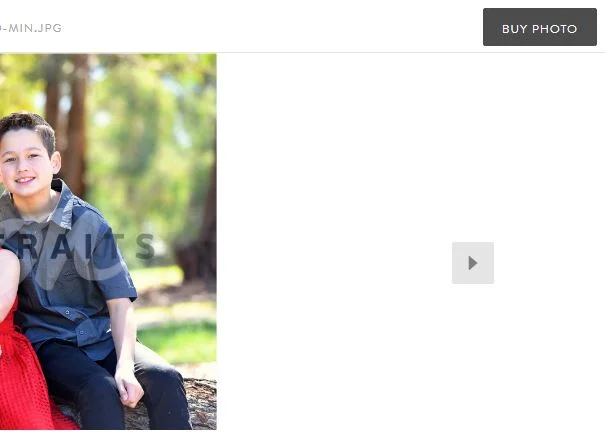
Step 2: All Digital Images
With the preview open, click on the Buy Photo button in the top right.
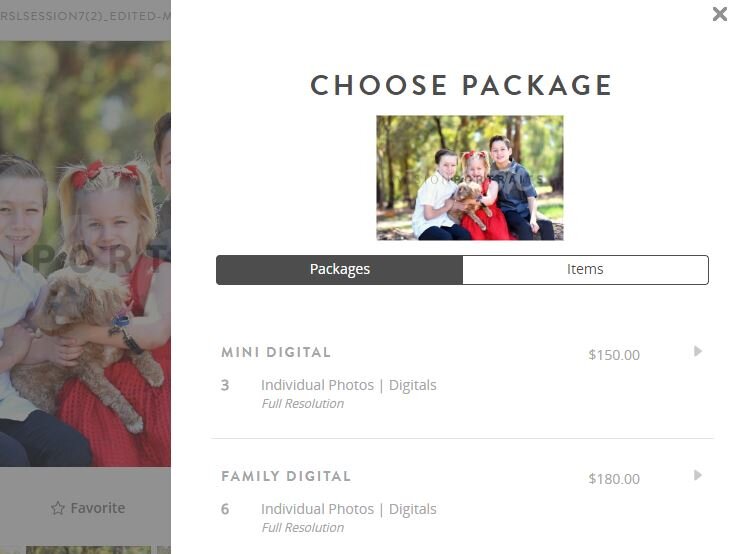
Step 3: All Digital Images
The menu, will appear on the right. Click on the Items tab.
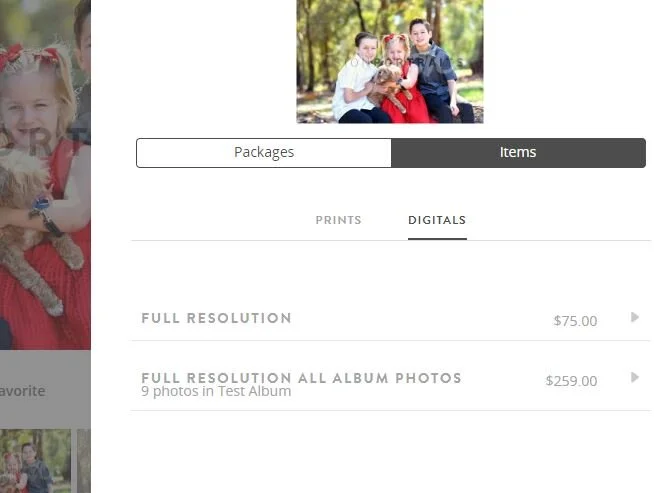
Step 4: All Digital Images
Click on the Digitals tab and then click ‘Full Resolution All Album Photos’
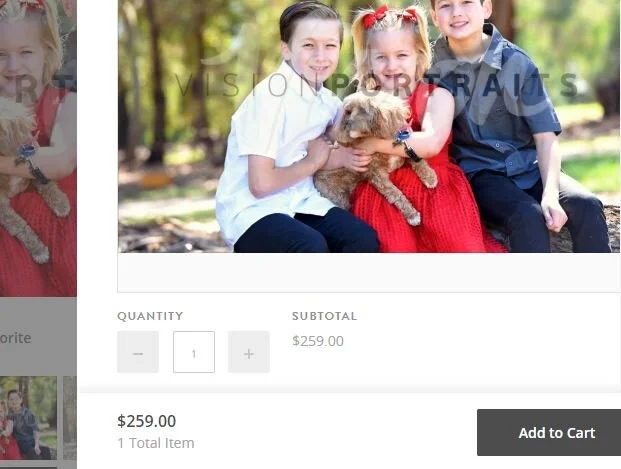
Step 5: All Digital Images
Click ‘Add to Cart’, then ‘View Cart’ and then ‘Checkout’.